
Issue an Offer
Offers are typically issued to a Member as part of a marketing campaign or other promotion. From the Member Profile screen, you can manually issue an Offer to a Member. In addition, you can provide a detailed reason as to why you issued the Offer. This reason will be stored as part of the Offer Response and Member Activity, which ensures transparency and accountability.
The Offer must have a status of Published before you can manually issue it to a Member. See Publish an Offer for more information.
Note: You can also issue an Offer to a Member from the Member Profile screen.
To issue an Offer from the Member Details screen:
-
Select Members from the top navigation bar, then select Members > Members from the side navigation menu. The Members screen is displayed.
-
On the Members screen, search for and select the desired Member (see Search for a Member for more information). The Member Details screen is displayed with the Metrics tab selected by default.
-
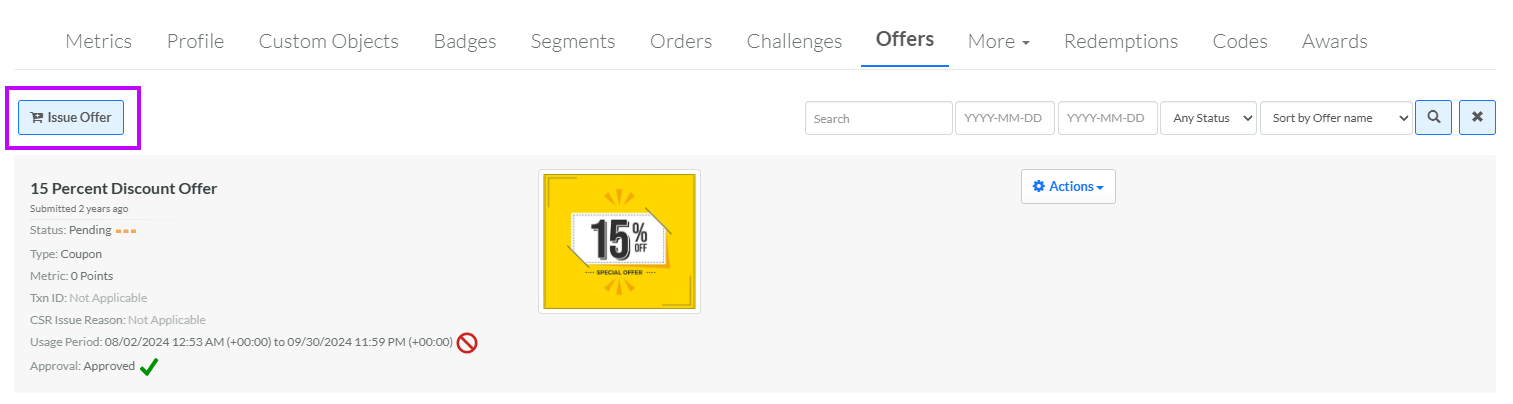
Select the Offer tab.
-
Click Issue Offer. The Select an Offer to Issue pop-up window is displayed.
-
From the Offer drop-down menu, select the desired Offer. This menu displays all Offers in your account with a status of Published.
-
Optionally, in the Reason field, enter a reason for manually issuing the Offer.
-
Click Issue. A confirmation dialog box is displayed; click OK.
